Start accepting card payments with
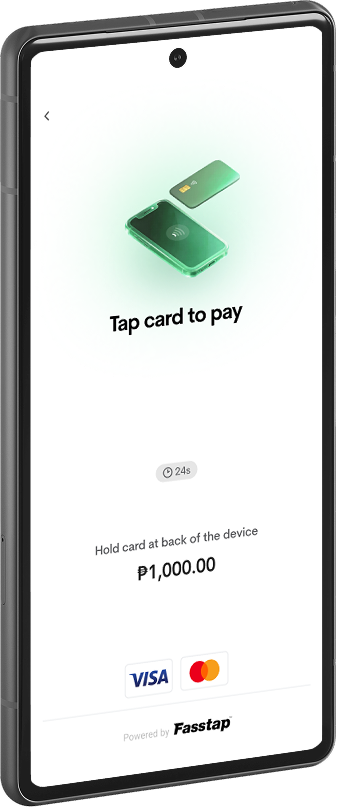
Maya Tap to Phone
in the all-new Maya Business app.
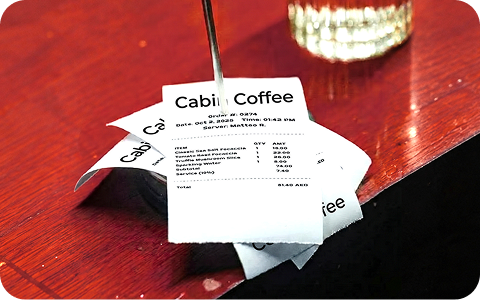
Earn 3x
more sales
Versus just accepting
QR payments
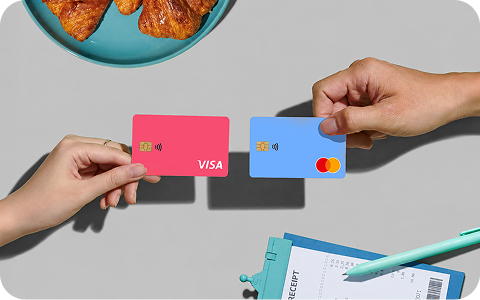
Welcome even more customers
Accept all debit and
credit cards
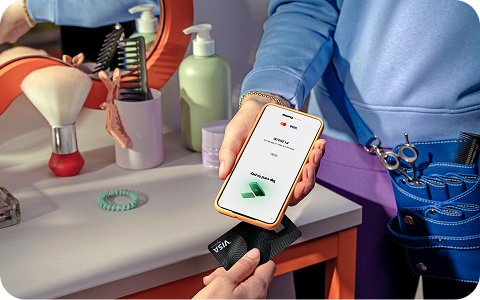
Quick and easy to use
That lets you take payments
with just a few taps
Why you’ll love it
The newest Maya Business payment solution designed to help your business make more money from card payments—with just your Android phone
- Accept Visa and Mastercard payments
Serve customers who are willing to spend more using their credit and debit card - Say goodbye to extra fees
Pay only when you use it - Forget the extra hardware
Just use your NFC-enabled Android phone to start
How it works


Maya Tap to Phone is only available for NFC-enabled Android phones

Ready to join the growing community powered by Maya Business?


Tap to Phone is a Maya Business app feature that allows you to accept card payments using a compatible Android phone. With Tap to Phone, you can:
- Accept debit and credit card payments through your phone with no additional hardware needed
- Activate the feature directly through the Maya Business app
- View and manage your Tap to Phone transactions in the app
Tap to Phone is currently available only to Maya Business Pro accounts. You'll need to upgrade to Maya Business Pro before you can activate and use the feature.
To upgrade to Maya Business Pro, you'll need to submit the following documents in the app:
1. Certificate of Registration (BIR Form 2303)
2. Proof of tax exemption, if applicable (e.g. a Certificate of Tax Exemption (CTE))
3. Department of Trade and Industry (DTI) Registration
4. Business Permit / Mayor's Permit
Please make sure to submit clear photos showing the complete details of the latest copies of your documents. Account verification may take at least three banking days after submission.
Tap to Phone is available on compatible Android phones. Make sure you have the latest version of the Maya Business app and that your phone meets the following requirements:
- It must support NFC
- It must run Android 12 or later
- Developer options must be turned off
- VPN must be turned off
- Mock or fake location settings must be turned off
Simply follow these steps:
1. Log in to the Maya Business app and select Tap to Phone
2. Tap Activate
3. Wait for the activation to finish, which may take a few minutes
You can begin accepting card payments once Tap to Phone has been activated.
Simply follow these steps:
1. Log in to the Maya Business app and select Tap to Phone
2. Enter the amount the customer needs to pay, then tap Pay
3. Ask the customer to hold their card near the back of your phone
4. Wait for the payment confirmation before removing the card
Simply follow these steps:
1. On the payment confirmation screen, tap Send Email Receipt
2. Enter the customer’s email address
3. Tap Send Receipt
Tap to Phone accepts Visa, Mastercard, Apple pay and Google pay debit and credit cards.
Yes. Tap to Phone accepts international credit cards issued by Visa or Mastercard.
A 3% Merchant Discount Rate applies to each successful Tap to Phone transaction.
There is no limit to the number of Tap to Phone payments you can accept with a Maya Business Pro account.
Simply follow these steps:
1. Go to your transaction history and select Terminals
2. Select the transaction you want to void
3. Tap Void and enter the reason for voiding the transaction
4. Tap Confirm
Please note that you can only void transactions completed on the same day.
Tap to Phone payments are settled after one banking day to your Maya Business Deposit account.
You can only use your Maya Business Deposit account to receive your settlements.
No matching questions. Try a different search.
Need more answers?
Go to Help and Support